Getting Started
A guide to getting up and running with ArtBnkr.
Brief Explanation
The web app at artbnkr.com works in tandem with the Mistosis Client app which runs locally on your machine allowing file transfer/sync, and includes the Artist Toolkit allowing DCC (Blender, Houdini, Nuke, Gaffer etc.) communication.
The intention is that all file interactions happen via the Artbnkr web page and the Mitosis Client, this way ArtBnkr handles the naming, organising and location of files so that you can focus on the creative side.
Initial Set-Up Steps (for remote artists)
Go to artbnkr.com and create an account.
Contact us and give us your email which you used to sign up with and we will assign you to the relevant project.
Login to artbnkr.com
Download the Mitosis Client app. (Arrow Icon in the top bar, to the right)
Launch and Log in to Mitosis Client(same credentials as artbnkr.com)
Configure local storage and your preferred device name.
Tip
Local Storage is where all project files will be downloaded to, retaining the folder structure allowing referenced files to continue working locally. Device name is how you want your machine to be displayed. You can have multiple machines referencing your account, for example a laptop and a workstation.
Todo
Currently the file browser has issues and the path to the local storage may need to be pasted manually
Go to Settings, update and restart the app. - This can take a while, sometimes it gets stuck and you must manually close the app and open it again.
Log In again, use the “remember me” tickbox if you want to be logged in again automatically.
Artist Toolkit Addon Install
Mitosis Client includes the Artist Toolkit, a collection of tools that enhance pipeline integration for building, importing and exporting assets, creating playblasts and a number of utilities for each DCC.
The following are the install steps for each DCC:
Blender Install
Note
The Toolkit and Add-on are designed for Blender 4.32, as that is our current main working project. Most features also work on 4.5 LTS It will be updated to work with 5.2 LTS in the near future.
Install guide:
Download and install the version of Blender that is being used for the project.
Go to Apps in Mitosis Client, then App Paths.
Navigate (if file browser is working), using the blue folder to the right of the blender path, to the desired executable. If file browser is not working you will need to manually copy and paste the path.
Go to settings and Restart App.
Go to Apps, Launcher and click the Blender Icon. If configured correctly, this should launch the intended version of Blender.
Go to the Artist Toolkit Section, Settings and click the jigsaw-piece icon to install the addon to Blender. This will create a new Script Directory File Path referencing the Mitosis Client install directory. This means updates happen automatically.
Todo
The Blender auto addon installer is currently having issues on Windows, possibly other OSs. The steps to install it manually are the following:
Open preferences in Blender (Edit/Preferences).
Go to File Paths (on the left), and scroll down until you see Script Directories. Click Add. A Blender file browser will appear.
In Mitosis Client, Artist Toolkit Section, Settings, you will see a Blender Icon with a path below it. Select the path, up until blender. Not including addons. e.g, in Mac it would be: ‘/Users/artist/Library/Application Support/com.artbnkr.mitosis.client/flet/app/dcc_toolkit/plugins/blender’ and copy it.
Go back to the blender file browser and paste the copied path into the top part where paths are displayed. hit enter and click Add Python Script Directory. Do NOT enter the addon folder.
Name the Script Directory ArtBnkr_Toolkit
Click the icon with 3 horizontal lines in the bottom, left corner of the Preferences window, and Save Preferences.
Restart Blender for the changes to apply.
Go back to Preferences, to Add-Ons and enable the ArtBnkr Blender Artist Toolkit.
This creates a tab available from the 3D viewer by pressing n. This will show if the Toolkit is running and connected. In the Artist Toolkit there is a Sessions Tab.
From here you can see the current Blender file that is open, and if it is within the ArtBnkr pipeline you will see its thumbnail and be able to use the various tools available. There is a button to display a minimal version of mitosis to focus on toolkit features and to take up less screen space.
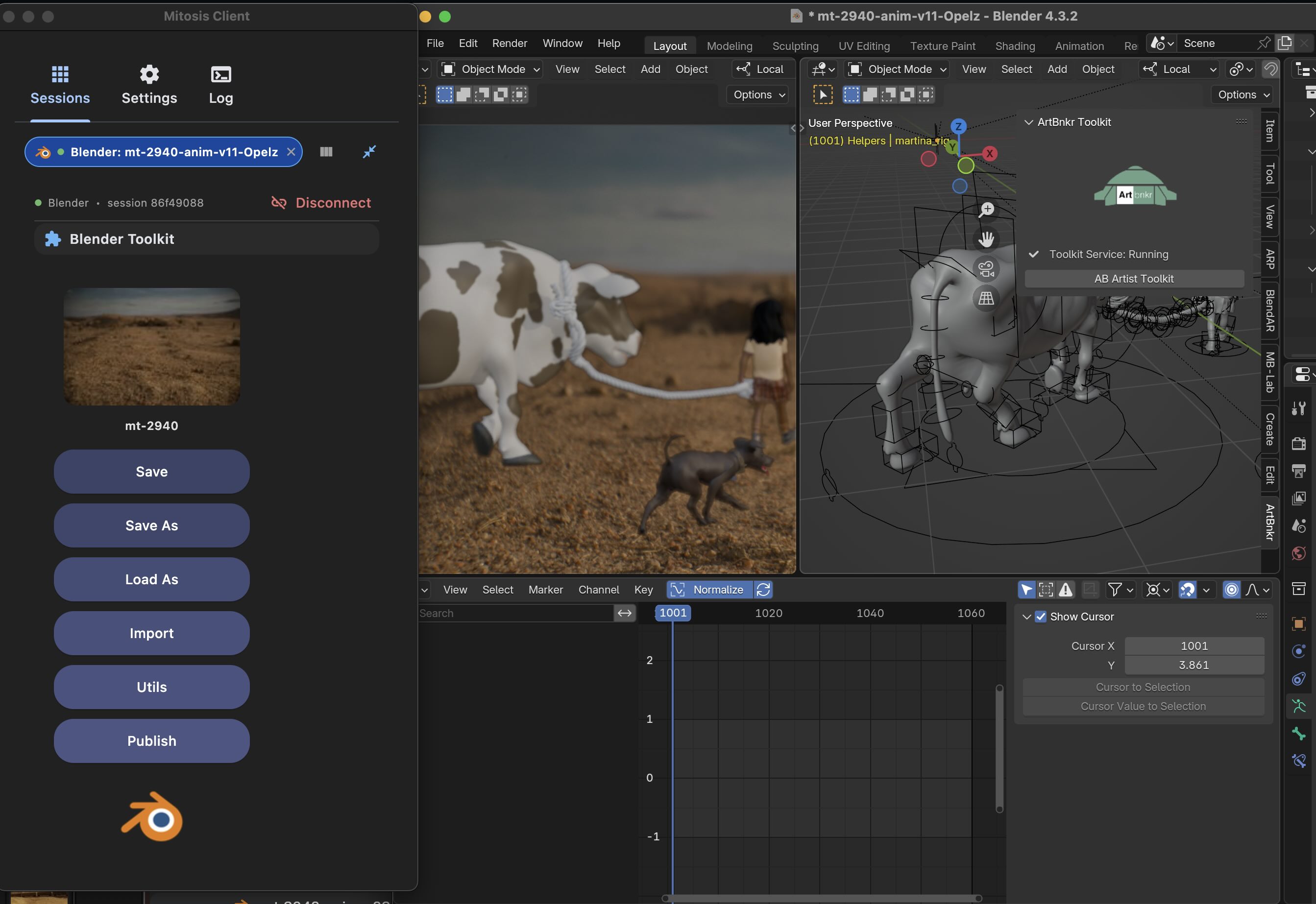
ScreenShot of Blender open with the addon visible and the Mitosis Artist Toolkit with a connected session.
Gaffer Install
Todo
Need to write the instructions for Gaffer Set-Up
Houdini Install
Todo
Write the instructions for Houdini Set-Up
Nuke Install
Todo
Need to write the instructions for Nuke Set-Up
Substance Install
Todo
Need to write the instructions for Substance Painter Set-Up